
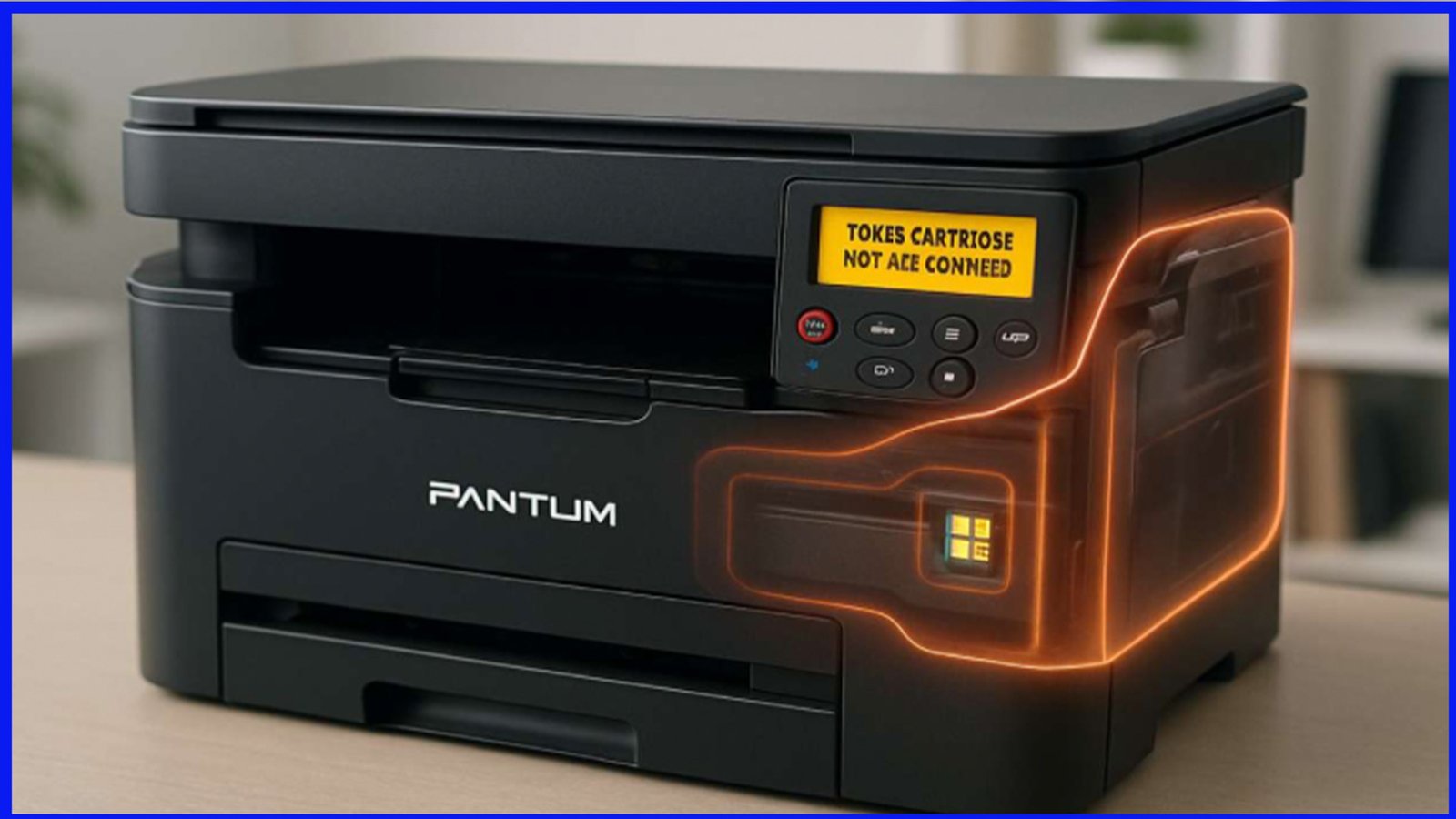

Safe Guide for Pantum M6500 & P2500 Printers: Setup, Operation, and Maintenance Tips
Why This Guide Helps You
This article offers a clear, trustworthy reference for safely setting up, using, and maintaining Pantum M6500 and P2500 series printers. It’s designed for both first-time users and administrators, ensuring reliability and long device longevity.
1. Essential Safety Precautions
-
Always place the printer on a flat, stable surface—avoid crowded areas, vibration, and direct sunlight. Ensure proper ventilation and keep away from heaters, air conditioners, moisture, and dust .
-
Use only the supplied power cord, and ensure the printer is connected to a grounded electrical outlet. Avoid outlets shared with high-power appliances .
-
Never attempt self-repair. Any internal maintenance should be performed by qualified service personnel to avoid electric shock or equipment damage .
2. Installation & Operation Environment
-
Recommended ambient temperature: 10 °C to 32.5 °C (50 °F to 90 °F); humidity: 20–80% (non-condensing) .
-
Suitable for indoor use only, and safe altitude is up to 2,000 meters (approx. 6,500 ft) .
-
Do not cover ventilation openings—overheating poses fire risks .
3. Handling Internal Components & Laser Safety
-
These printers follow Class 1 laser safety standards, with a Class III b laser diode inside. Do not disassemble the printer or remove warning labels—risk of exposure is low but serious if mishandled .
-
Before servicing, always turn off and unplug the unit. Respect hot surfaces like the fuser, which may cause burns .
4. Networking Safely (M6500 Series Wireless Setup)
-
For wireless setup via driver installation, avoid “Enter SSID manually”. Select your network’s SSID from the list, then input the correct password—this ensures accurate matching and stronger security .
-
Default hotspot password is “12345678”. To disable the printer’s Wi-Fi hotspot:
-
Connect via hotspot.
-
Visit 192.168.223.1, navigate to Settings → Wireless Hotspot, and choose Close .
-
5. Maintenance Reminders
-
Replace the toner cartridge properly: remove the seal, insert firmly until it clicks. If LEDs show errors, reconfigure ports and reinstall the driver to clear duplicates .
-
To review printer usage or toner level, use the control panel:
-
Menu → System Set → Info Report → Prt Info Page for M6500/6550
-
Similar navigation for M6600 .
-
-
To restore factory settings:
-
M6500/6550: Menu → System Set → Restore Set → Yes
-
M6600: follow the equivalent steps for its menu path .
-
Final Thoughts
Following these safety and setup guidelines will ensure your Pantum M6500 or P2500 printer performs reliably while keeping users and device integrity intact.