
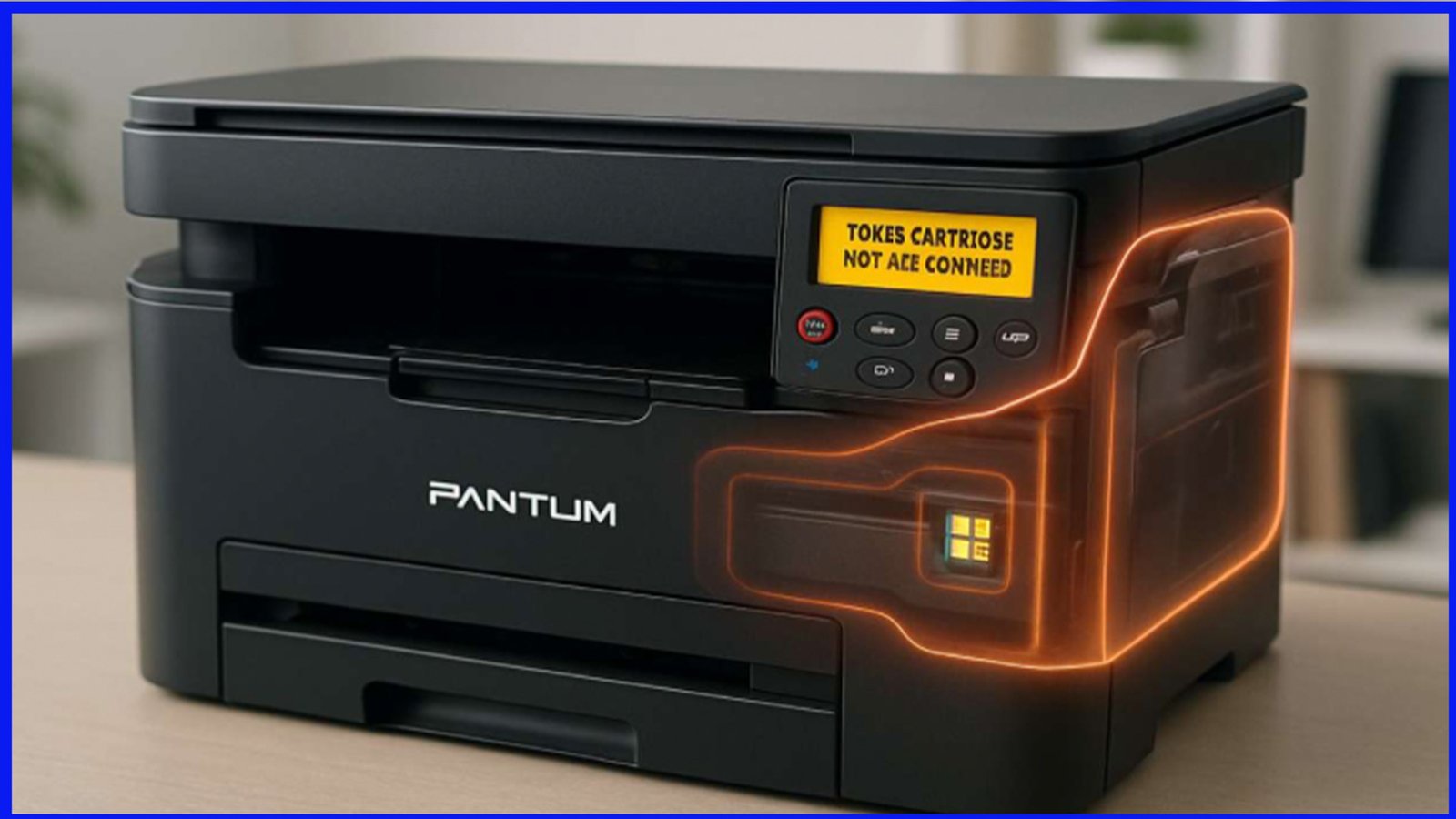
Safe Guide for Pantum M6500 & P2500 Printers: Setup, Operation, and Maintenance Tips
Why This Guide Helps You
This article offers a clear, trustworthy reference for safely setting up, using, and maintaining Pantum M6500 and P2500 series printers. It’s designed for both first-time users and administrators, ensuring reliability and long device longevity.
1. Essential Safety Precautions
Always place the printer on a flat, stable surface—avoid crowded areas, vibration, and direct sunlight. Ensure proper ventilation and keep away from heaters, air conditioners, moisture, and dust .
Use only the supplied power cord, and ensure the printer is connected to a grounded electrical outlet. Avoid outlets shared with high-power appliances .
Never attempt self-repair. Any internal maintenance should be performed by qualified service personnel to avoid electric shock or equipment damage .
2. Installation & Operation Environment
Recommended ambient temperature: 10 °C to 32.5 °C (50 °F to 90 °F); humidity: 20–80% (non-condensing) .
Suitable for indoor use only, and safe altitude is up to 2,000 meters (approx. 6,500 ft) .
Do not cover ventilation openings—overheating poses fire risks .
3. Handling Internal Components & Laser Safety
These printers follow Class 1 laser safety standards, with a Class III b laser diode inside. Do not disassemble the printer or remove warning labels—risk of exposure is low but serious if mishandled .
Before servicing, always turn off and unplug the unit. Respect hot surfaces like the fuser, which may cause burns .
4. Networking Safely (M6500 Series Wireless Setup)
For wireless setup via driver installation, avoid “Enter SSID manually”. Select your network’s SSID from the list, then input the correct password—this ensures accurate matching and stronger security .
Default hotspot password is “12345678”. To disable the printer’s Wi-Fi hotspot:
Connect via hotspot.
Visit 192.168.223.1, navigate to Settings → Wireless Hotspot, and choose Close .
5. Maintenance Reminders
Replace the toner cartridge properly: remove the seal, insert firmly until it clicks. If LEDs show errors, reconfigure ports and reinstall the driver to clear duplicates .
To review printer usage or toner level, use the control panel:
Menu → System Set → Info Report → Prt Info Page for M6500/6550
Similar navigation for M6600 .
To restore factory settings:
M6500/6550: Menu → System Set → Restore Set → Yes
M6600: follow the equivalent steps for its menu path .
Final Thoughts
Following these safety and setup guidelines will ensure your Pantum M6500 or P2500 printer performs reliably while keeping users and device integrity intact.