
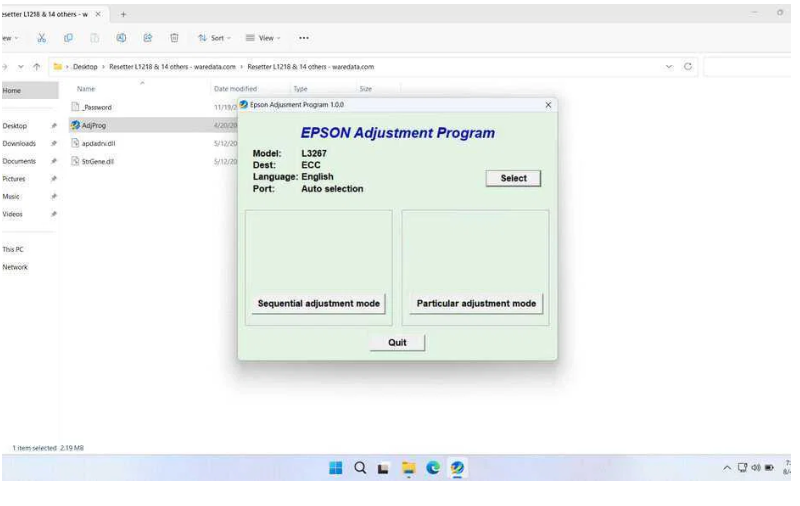
Epson Adjustment Program L3267: Complete Guide to Resetting Your Printer
If you’ve been using your Epson L3267 printer for a while, you may have encountered a frustrating error message telling you that the waste ink pad is at the end of its service life. This is where the Epson Adjustment Program L3267 comes in — a specialized software utility designed to reset your printer’s internal counters and get it working again. In this guide, we’ll cover everything you need to know about this tool, how it works, when to use it, and how to use it safely.
What Is the Epson Adjustment Program L3267?
The Epson Adjustment Program L3267 (also known as the Epson L3267 Resetter or Service Tool) is an official-type maintenance utility created for the Epson EcoTank L3267 printer model. It allows users and technicians to perform low-level maintenance operations that are not accessible through the standard printer driver or control panel.
The most common use of this tool is resetting the waste ink pad counter — a built-in software counter that tracks how much ink has been absorbed by the printer’s internal waste ink pads. Once this counter reaches its limit, the printer locks itself to prevent overflow and potential damage.
Key Features of the Epson L3267 Adjustment Program
- Waste ink pad counter reset
- Bi-directional adjustment (print alignment correction)
- Head cleaning and nozzle check automation
- EEPROM data read/write functions
- Ink charge initialization
- Power cleaning cycle control
How Does an Epson L3267 Resetter Work?
Epson L3267 resetter software operates by accessing the printer’s service mode, a hidden maintenance level not available through standard drivers or control panels. Here’s the process:
- Connection: The printer is connected to a computer (usually via USB).
- Software Launch: You run the specific resetter software designed for the Epson L3267/EcoTank series.
- Initialization: The software identifies the connected printer.
- Reading Counters: It reads the current value of the waste ink counter(s).
- Resetting: It sends a reset signal to the printer’s firmware, setting the waste ink counter(s) back to zero.
- Confirmation: The software displays a success message, and the printer exits the error state, ready for use.
Why Does the Epson L3267 Show a Waste Ink Pad Error?
The Epson L3267 is an EcoTank inkjet printer that uses a continuous ink supply system (CISS). Every time the printer performs a cleaning cycle, head initialization, or standard printing operation, a small amount of ink is flushed into an internal sponge — the waste ink pad.
Over time, this pad fills up. Epson programs a counter into the printer’s firmware to estimate when the pad is near capacity. When the counter hits 100%, the printer stops working and displays one of these messages:
- “A printer’s ink pad is at the end of its service life.”
- “Parts inside your printer are at the end of their service life.”
- The power light and ink lights blink simultaneously
This is a protective mechanism. The Epson Adjustment Program L3267 resets this counter so printing can resume.
Important: Resetting the counter does not physically clean or replace the waste ink pad. If your pad is genuinely full, ink can leak and damage the printer. Consider cleaning or replacing the pad if you’ve reset the counter multiple times.
Is the Epson Adjustment Program L3267 Safe to Use?
When used correctly and downloaded from a legitimate source, the Epson Adjustment Program for the L3267 is generally safe. However, there are important cautions to keep in mind:
Use only with compatible models. Running the wrong adjustment program on a different printer model can corrupt firmware and permanently damage the device.
Download with care. There are many unofficial versions circulating online. Some may be bundled with malware or may not function correctly. Always scan downloaded files with antivirus software before running them.
Back up EEPROM data first. Before making any changes, use the program’s built-in function to back up your printer’s EEPROM data. This allows you to restore the original configuration if anything goes wrong.
Don’t over-rely on resets. Repeated resets without replacing the physical waste ink pad can eventually lead to ink overflow, internal damage, and permanent printer failure.
How to Use the Epson Adjustment Program L3267: Step-by-Step
What You’ll Need
- A Windows PC (the adjustment program typically runs on Windows 7, 8, 10, or 11)
- A USB connection between your PC and the Epson L3267
- The Epson L3267 Adjustment Program (downloaded from a reputable source)
- WinRAR or 7-Zip to extract the program if it comes compressed
Step 1: Prepare Your Printer
Turn on your Epson L3267 and connect it to your computer via USB. Make sure the printer is recognized by Windows and is not in an error state that prevents communication.
Step 2: Extract and Launch the Program
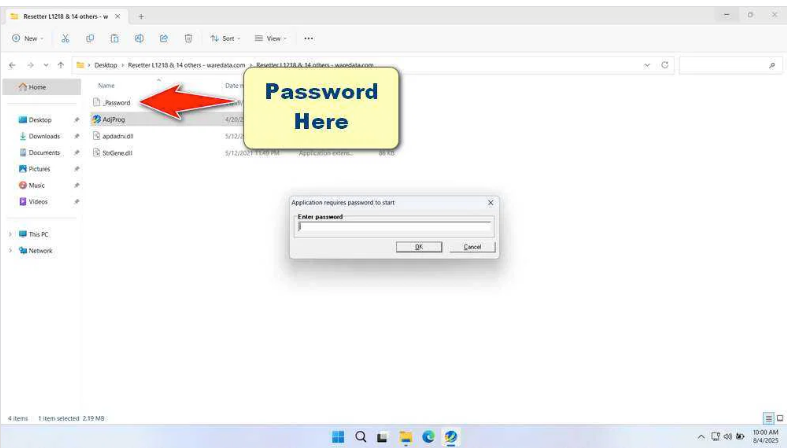
Extract the adjustment program files to a convenient folder. Open the program — it usually runs as a portable executable and does not require installation. You may need to run it as Administrator (right-click → Run as administrator).
Step 3: Select Your Printer Model
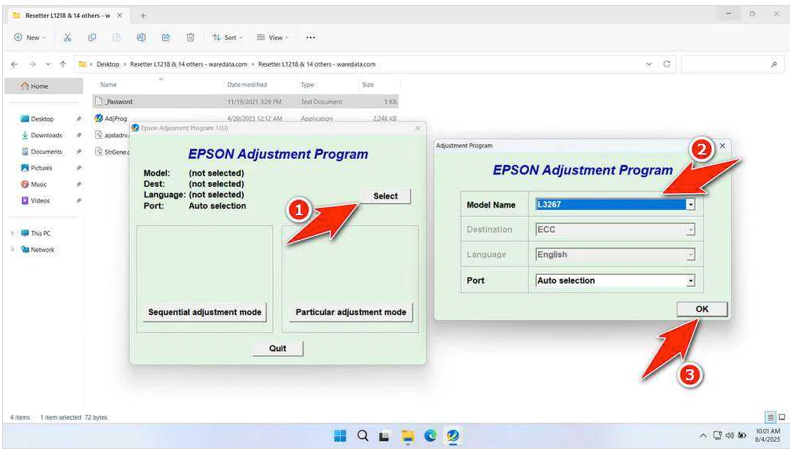
When the program launches, select Epson L3267 from the model list and choose the correct communication port (usually USB). Click OK to proceed.
Step 4: Back Up Your EEPROM Data
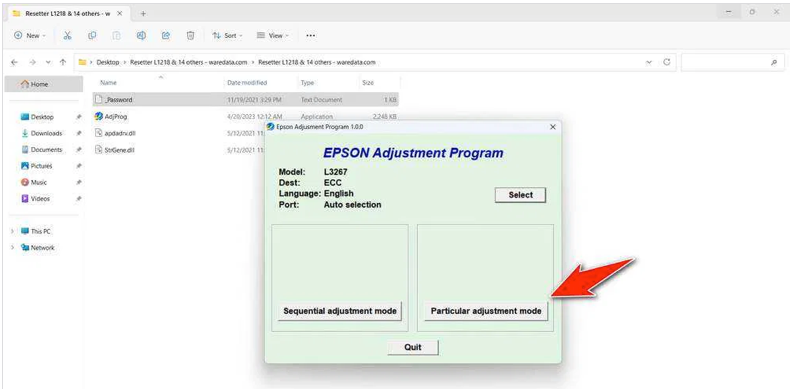
Before making any changes, navigate to the Maintenance section and select EEPROM Data Copy or Backup. Save this file somewhere safe. This is your recovery point.
Step 5: Reset the Waste Ink Pad Counter
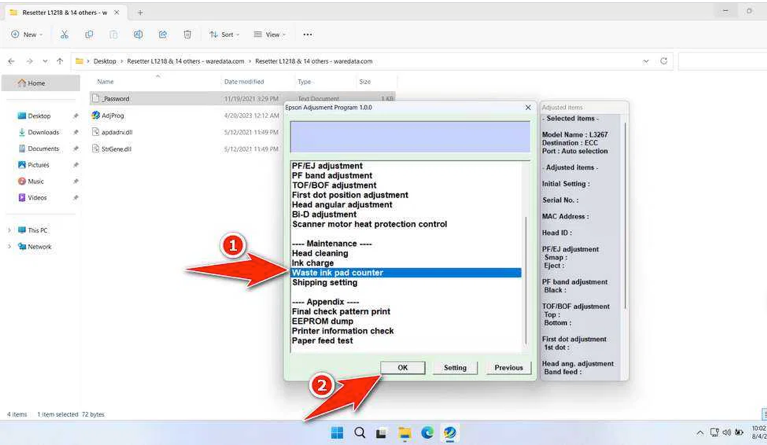
- In the main menu, click on Particular adjustment mode
- Select Waste ink pad counter from the list
- Click OK
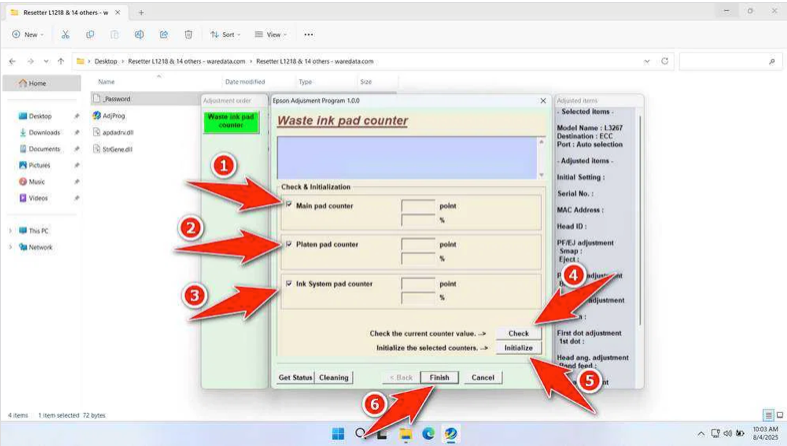
- Check the boxes next to Main pad counter and Platen pad counter
- Click Check to see the current counter values
- Click Initialization to reset both counters to zero
- Click Finish
Step 6: Restart the Printer
Turn off the Epson L3267 completely, wait 10–15 seconds, then turn it back on. The error message should be gone and the printer should operate normally.
Common Issues and Troubleshooting
The program doesn’t detect my printer. Make sure your printer is connected via USB (not Wi-Fi), that it’s powered on, and that the USB cable is firmly connected. Try a different USB port or cable if needed. Also ensure the Epson printer driver is properly installed on your PC.
The program shows “Communication error.” This often happens if there are conflicting programs (like the Epson Status Monitor) running in the background. Close all Epson utilities and try again. In some cases, temporarily disabling antivirus software during the reset process may help.
The error message returns quickly after resetting. If the waste ink counter fills up again quickly, it’s a sign that the physical waste ink pads are saturated. Resetting the counter won’t solve the physical problem — the pads need to be cleaned with isopropyl alcohol or replaced entirely.
I accidentally ran the program on the wrong model. This is a serious situation. If the printer responds abnormally after this, restore your EEPROM backup immediately using the program’s restore function. If that fails, contact Epson technical support or a professional printer repair service.
Epson L3267 Waste Ink Pad Reset vs. Professional Service
| Factor | DIY Reset with Adjustment Program | Professional Epson Service |
|---|---|---|
| Cost | Low to none | Moderate to high |
| Time | Minutes | Days (depending on location) |
| Risk | Medium (if done incorrectly) | Low |
| Physical pad cleaning | Not included | Usually included |
| Warranty impact | May void warranty | Preserves warranty |
| Repeat resets needed | Possible | Less likely |
For printers still under warranty, it is generally better to take the device to an authorized Epson service center. For out-of-warranty printers, the adjustment program is a practical and cost-effective solution when used responsibly.
How Often Can You Reset the Epson L3267?
There is no hard limit on how many times you can reset the counter using the Epson Adjustment Program L3267. However, each reset without physically addressing the waste ink pad increases the risk of ink overflow and internal damage. As a general guideline:
- First reset: Usually fine, especially if the printer is relatively new
- Second reset: Strongly consider cleaning or replacing the waste ink pads before proceeding
- Third reset and beyond: Physical pad replacement is highly recommended to avoid damaging the printer’s internal components
Alternatives to the Epson Adjustment Program L3267
If you’re not comfortable using the adjustment program yourself, here are some alternatives:
Epson Authorized Service Centers — These can perform the reset and physically service the waste ink pads with proper tools and genuine replacement parts.
Third-party printer repair shops — Many general computer and printer repair shops can perform waste ink resets for a small fee.
Epson’s official website — Epson occasionally offers firmware updates and self-service tools. Check the Epson support page for your region to see if any official options are available for the L3267 model.
The Epson Adjustment Program L3267 is a powerful maintenance tool that can extend the life of your EcoTank printer at minimal cost. Whether you’re dealing with a flashing error light, a locked printer, or a waste ink pad counter that’s hit its limit, this utility gives you the means to take control of your printer’s maintenance without an expensive trip to a service center.
Just remember: resetting the software counter is only half the solution. Caring for the physical components — specifically the waste ink pads — is equally important for keeping your Epson L3267 running smoothly for years to come.
Always ensure you’re using the correct adjustment program version matched to your printer model. Using incompatible software can cause permanent damage. When in doubt, consult a certified Epson technician.