Download Epson L3267 Resetter Here – Complete Guide & Fix
In this guide, you will find everything you need to know about the Epson L3267 Resetter: what it does, when to use it, and a clear step-by-step walkthrough so you can get your printer back online without paying for a service center visit.
1. What Is the Epson L3267 Resetter?
The Epson L3267 Resetter — also known as the Waste Ink Pad Counter Reset Tool — is a small software utility that resets the internal counter inside your Epson L3267 printer firmware. This counter tracks how much ink has been absorbed by the waste ink pads inside the printer.
Epson builds in this counter as a safety mechanism. Once a certain threshold is reached, the printer locks itself down to prevent ink overflow and potential hardware damage. The resetter simply resets this counter back to zero, signaling to the printer that the pads have been cleaned or replaced.
The official Epson adjustment program used to reset the L3267 is the same tool used by authorized Epson service technicians. When downloaded from a safe, verified source, it is completely legitimate to use.
The tool is compatible with Windows-based systems and works specifically with the Epson EcoTank L3267 model. It is not a virus, crack, or harmful program — it communicates directly with your printer over USB to update its internal counters.
2. When Do You Need to Reset Your Epson L3267?
You will typically need the L3267 Resetter when your printer displays one or more of the following symptoms:
- The printer’s power light and ink light blink alternately
- You see the error message: “A printer’s ink pad is at the end of its service life”
- Printing stops mid-job for no apparent hardware reason
- The Epson Status Monitor shows a waste ink pad warning
- The printer turns on briefly but refuses to start a print job
Resetting the counter does not physically clean the waste ink pads. For best results, open the printer and inspect or replace the physical pads as well — especially if the printer has been used heavily for years.
3. Epson L3267 – Quick Specs
Before diving into the reset process, here is a quick overview of the Epson L3267 for reference:
| Feature | Details |
|---|---|
| Printer Type | EcoTank All-in-One Inkjet |
| Functions | Print, Scan, Copy |
| Connectivity | Wi-Fi, USB 2.0 |
| Ink System | Integrated ink tank (Refillable) |
| Max Print Resolution | 5760 × 1440 dpi |
| Compatible OS | Windows 7 / 8 / 10 / 11, macOS |
| Resetter Compatibility | Windows (32-bit & 64-bit) |
| Waste Ink Pad Limit | ~7,500–10,000 prints (varies) |
4. How to Use the Epson L3267 Resetter (Step-by-Step)
Follow this step-by-step process carefully. Skipping steps may cause the reset to fail or leave your printer in a partially reset state.
Before You Begin
Make sure your printer is powered on, connected to your PC via USB cable, and that you have closed any Epson printer drivers or monitoring software running in the background before starting.
Step-by-Step Reset Instructions
- Download the resetter tool from a verified and reputable source. Save the file to a folder you can easily find (e.g., your Desktop). Do not extract to a system directory.
- Disable your antivirus temporarily. Because the tool accesses printer firmware directly, some antivirus programs may flag it as suspicious. This is a false positive common with printer adjustment programs.
- Extract the ZIP file using WinRAR or 7-Zip. Open the extracted folder and locate the main executable file (usually named
AdjProg.exeor similar). - Right-click the .exe file and select “Run as Administrator.” This is required for the tool to communicate properly with your printer.
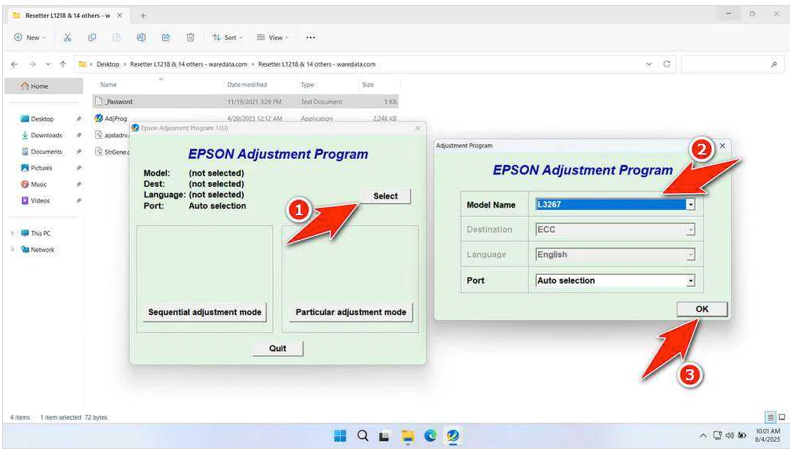
- In the tool’s interface, click “Select” and choose your printer model — Epson L3267 — from the list. Then click “OK.”
- Click “Particular adjustment mode” from the main menu, then select “Waste ink pad counter” from the list on the left side.
- Check the boxes for both “Main pad counter” and “Platen pad counter.” Then click “Check” to see the current counter values.
- Click “Initialization” to reset the counters to zero. Wait for the confirmation message — this usually takes 10–30 seconds.
- Click “Finish.” The tool will prompt you to turn off and restart your printer. Do so, and your printer should boot up without any error lights.
- Run a test print to confirm everything is working correctly. If the printer prints successfully, the reset is complete.
Download Epson L3267 Resetter
Always download from trusted sources. Check reputable printer support communities, official Epson reseller forums, or verified tech support websites. Avoid sites with excessive pop-ups or redirects.
Understand that resetting only clears the software counter. The ink absorbed in the pads remains. Repeated resets without eventually replacing the pads will lead to oversaturation, risking serious internal damage, leaks, or electrical shorts.
After you understand how the resetter works and the risks it may pose, you will certainly be able to use the resetter with great caution. For those of you who need the Epson L3267 Resetter, you can download it through the following link.
File Size: 2.24MB
File Type: .ZIP
OS Support: Windows 7/8/10/11 or higher
5. Troubleshooting Common Errors
The resetter doesn’t detect my printer
Ensure the printer is connected via USB (not only Wi-Fi) and that the printer is powered on. Try a different USB port or cable. Also make sure no other Epson software is running in the background — use Task Manager to close any EAgent.exe or EPSON Status Monitor processes.
My printer model isn’t listed in the tool
The L3267 may appear under a slightly different model code in some versions of the resetter. Try searching for “L3260 series” or “L326x” as Epson groups related models in some adjustment programs.
The error light is still on after reset
If the error persists after a successful counter reset, it may indicate a physical hardware issue with the waste ink pads themselves. In this case, open the printer casing and inspect the pads — if they are saturated with dried ink, replace them with new pads available from printer supply stores.
The tool crashes on Windows 11
Run the tool in compatibility mode for Windows 7 or Windows 8. Right-click the .exe → Properties → Compatibility tab → Check “Run this program in compatibility mode for” and choose Windows 7.
6. Frequently Asked Questions
Is it safe to use the Epson L3267 Resetter?
Yes, when downloaded from a reputable source. The tool simply updates an internal counter value in the printer’s firmware — it does not alter print quality settings or damage hardware components.
How many times can I reset the waste ink pad counter?
There is no hard limit on how many times you can reset the counter. However, if you continue using the printer without replacing the physical waste ink pads, you risk ink overflow damage over time. It is recommended to replace the pads after every 1–2 resets.
Will resetting void my printer warranty?
Using an unofficial resetter may technically void the Epson warranty for waste ink pad-related issues. If your printer is still under warranty, consider contacting Epson customer support first. They may reset the counter for free as part of a service visit.
Does the resetter work on Mac or Linux?
Most versions of the Epson L3267 adjustment program are Windows-only. Mac users may need to run the tool via a Windows virtual machine (e.g., using Parallels or VirtualBox) or contact an authorized Epson technician.
What is the difference between “Main pad counter” and “Platen pad counter”?
The main pad counter tracks ink from regular document printing, while the platen pad counter tracks ink from borderless or edge-to-edge photo printing. It is best practice to reset both counters at the same time.
My printer still says “Service Required” after reset. What do I do?
Turn the printer completely off, wait 30 seconds, and turn it back on. If the message persists, run the resetter again and confirm that the counter values were successfully set to “0” before clicking Finish. A USB connection (not Wi-Fi) is required for the reset to apply.
The Epson L3267 is a reliable, cost-effective EcoTank printer — but like all Epson inkjet printers, it will eventually hit its waste ink pad counter limit. Rather than discarding a perfectly functional machine or paying steep service center fees, the resetter tool offers a straightforward, do-it-yourself solution.
By following the steps outlined in this guide, most users can complete the reset in under 10 minutes and get back to printing without any issues. Just remember to also inspect and replace the physical waste ink pads if your printer has had heavy use — the software reset alone won’t last forever.
Bookmark this page so you have the guide handy the next time the waste ink pad counter reaches its limit. Keeping a spare set of waste ink pads at home means you can fully resolve the issue — hardware and software — in one go.
If you found this guide helpful, share it with other Epson L3267 owners who may be experiencing the same issue. Have a question not covered here? Drop it in the comments below.