assengaonline.com
  • JOBS
  • EDUCATION
  • TECHNOLOGY
  • SCHOLARSHIPS
  • SPORTS
  • STORE
    • Furniture
    • Phones
    • Men’s Fashion
    • Books
  • ENTERTAINMENT
Monday, July 27, 2026
Shop here
Mashuka mazuri ya kisasa Mazito
Mashuka mazuri ya kisasa
Dressing Table za kisasa
Jezi mpya ya Manchester United 2026 – Order now
Presidential Executive Fancargo Sofa set with Premium details
Min kitchen cabinet – Materials Blockboard with Turkish board
Sofa Set za kisasa: Lets win this Crafted design
✨ Top Classic Sofa Set ✨ Available Now.
Dining table – Upgrade your dining space with timeless craftsmanship, durability,...
TCL 55″ Google Smart Tv (Bei ya TCL Google Tv)
JIUNGE KWENYE CHANNEL YETU
assengaonline.com
  • JOBS
  • EDUCATION
  • TECHNOLOGY
  • SCHOLARSHIPS
  • SPORTS
  • STORE
    • Furniture
    • Phones
    • Men’s Fashion
    • Books
  • ENTERTAINMENT
Monday, July 27, 2026
Shop here
Mashuka mazuri ya kisasa Mazito
Mashuka mazuri ya kisasa
Dressing Table za kisasa
Jezi mpya ya Manchester United 2026 – Order now
Presidential Executive Fancargo Sofa set with Premium details
Min kitchen cabinet – Materials Blockboard with Turkish board
Sofa Set za kisasa: Lets win this Crafted design
✨ Top Classic Sofa Set ✨ Available Now.
Dining table – Upgrade your dining space with timeless craftsmanship, durability,...
TCL 55″ Google Smart Tv (Bei ya TCL Google Tv)
JIUNGE NA CHANNEL YETU
Shop here
Mashuka mazuri ya kisasa Mazito
Mashuka mazuri ya kisasa
Dressing Table za kisasa
Jezi mpya ya Manchester United 2026 – Order now
Presidential Executive Fancargo Sofa set with Premium details
Min kitchen cabinet – Materials Blockboard with Turkish board
Sofa Set za kisasa: Lets win this Crafted design
✨ Top Classic Sofa Set ✨ Available Now.
Dining table – Upgrade your dining space with timeless craftsmanship, durability,...
TCL 55″ Google Smart Tv (Bei ya TCL Google Tv)
  • 0
assengaonline.com
JIUNGE NA CHANNEL YETU BOFYA HAPA
assengaonline.com
  • JOBS
  • EDUCATION
  • TECHNOLOGY
  • SCHOLARSHIPS
  • SPORTS
  • STORE
    • Furniture
    • Phones
    • Men’s Fashion
    • Books
  • ENTERTAINMENT
Copyright 2021 - All Right Reserved
Home - South African Revenue Service SARS
Tag:

South African Revenue Service SARS

Withholding Tax on Interest
Uncategorized

Withholding Tax on Interest South Africa 2021

by admin October 19, 2021
written by admin

What is Withholding Tax on Interest WTI?

The Withholding Tax on Interest WTI is a tax charged on interest paid (on or after 1 March 2015) by any person to or for the benefit of a foreign person (which includes individuals, companies, etc.) from a source within South Africa.
The foreign person is responsible for the tax, but it must be withheld by the person making the interest payment to or for the benefit of the foreign person. Interest paid is taxed at a final withholding tax rate of 15%.

What exemptions or reduced rates apply for Withholding Tax on Interest WTI

The exemptions relevant to WTI fall into three broad groups:
  • The payor (the person paying the interest)
  • The instrument (the instrument giving rise to the interest, e.g. the debt or the investment)
  • The foreign person (the recipient of the interest).
Payor:
An amount of interest is exempt if it is paid by —
  • The Government of South Africa (national, provincial or local sphere)
  • Any bank, including the South African Reserve Bank (SARB), Development Bank of South Africa or Industrial Development Corporation or
  • A headquarter company relating to financial assistance where the headquarter company directly or indirectly holds 10% of the equity and voting rights.
Instrument:
An amount of interest is exempt if it is paid –
  • In connection with listed debt, e.g. bonds listed on the Johannesburg Stock Exchange (JSE)
  • Interest payable to any foreigner that is a client, to whom a regulated person provides securities services, acts as an agent for another person about those services in which case it will include the agent or exclude the other person, if the contractual arrangement between the parties shows this to be the intention.
The above exemptions are based on the payor and the instrument doesn’t require the WTID – Withholding Tax on Interest Declaration to be completed and sent to the payor before payment of the interest.
Foreign recipient:
A foreign person is exempt from WTI if:
  • They are a natural person who was here in South Africa for a period more than 183 days in total during the 12 months before the date when the interest is paid; or
  • The debt claim for which interest is paid is effectively connected with a permanent establishment of the foreign person who is registered as a taxpayer in South Africa.
Reduced rates
A reduced rate of tax or exemption may apply under an applicable Agreement for the Avoidance of Double Taxation(DTA). The DTA may reduce the rate South Africa is allowed to charge, or even deny South Africa the right to tax the interest payments. The reduced rates or exemptions under a DTA don’t automatically apply but require the  WTID – Withholding Tax On Interest Declaration to be submitted to the payor of the interest prior to payment of the interest.

When and how should it be paid?

Withholding Tax on Interest WTI can be paid to SARS only electronically via eFiling, see how to pay via eFiling.

A payor must submit the Return for Withholding Tax on Interest (WT002), which is a summary of the total of all interest payments made and tax withheld during a month, to SARS. The WT002 and the payment must be submitted to SARS before the end of the month after the month in which the interest was paid.

What else is needed?

SARS will need a reconciliation summary of all the WTI payments made for the year. This is where you will declare who you withheld tax from.
  • An IT3(b) – Certificate of Income from Investments, Property Rights and Royalties must be completed and given to the foreigner and SARS.
    • Submission of the IT3(b)s to SARS can be done using one of the Third Party Data Submission Platforms. Follow the guidelines for the submission of Third Party Data as set out in the SARS External Business Requirement Specification (BRS) – IT3 Data Submission (2014 version 2.0.3) for submissions periods starting 01 March 2021 and afterwards use the updated SARS IT3 BRS i.e. SARS_External BRS_2020_IT3s_v3.0.0-32.
  • IT3(s) – Tax Free Savings/Investments and Withholding Tax on Interest (WTI)
    • For the 12 month period 1 March  to 28 February due by 31 May of the next year using the updated BRS version 2.0.3 for submissions periods starting 01 March 2021 and afterwards use the updated SARS IT3 BRS i.e. SARS_External BRS_2020_IT3s_v3.0.0-32.
    • Only one 12 month submission will be needed for Tax Free Savings/Investments and WTI.

October 19, 2021 0 comments
0 FacebookTwitterPinterestEmail
Withholding Tax on Interest South Africa
Uncategorized

How to pay Withholding Tax on Interest South Africa WTI on eFiling South Africa 2021

by admin October 19, 2021
written by admin

How to pay Withholding Tax on Interest South Africa WTI on eFiling South Africa

The Withholding Tax on Interest South Africa WTI is a tax charged on interest paid (on or after 1 March 2015) by any person to or for the benefit of a foreign person (which includes individuals, companies, etc.) from a source within South Africa.

The foreign person is responsible for the tax, but it must be withheld by the person making the interest payment to or for the benefit of the foreign person.

Step 1: Register for WTI

Make sure you have a valid Income Tax reference number. If you are not registered for Income Tax or you can’t remember your Income Tax reference number, please visit your nearest SARS branch or call the SARS Contact Centre on 0800 00 7277 for assistance.
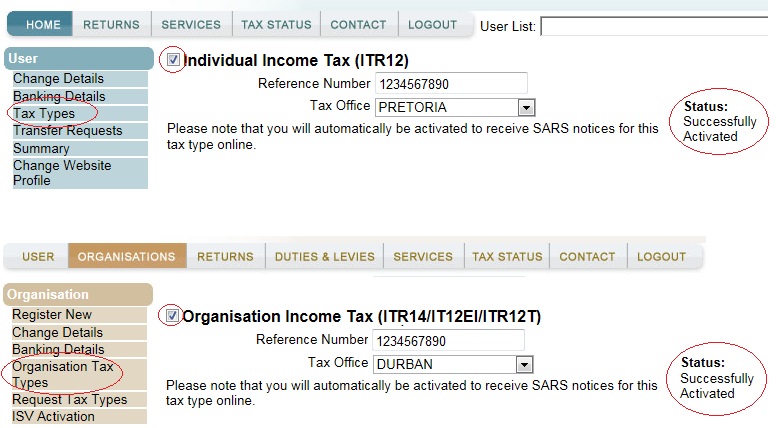
  • Log on to the eFiling website with your eFiling Login Name and Password.
  • Check if the ‘Income Tax’ under ‘Tax Types’ has been activated for eFiling. If not, please activate the Income Tax reference number.
  • If you register as a ‘Company representative’, it must be your individual income tax reference number completed in the representative screen and not the company tax reference number.

Screenshot of ITR12 / ITR14/IT12EI/ITR12T on eFiling website

Screenshot of ITR12 / ITR14/IT12EI/ITR12T on eFiling website

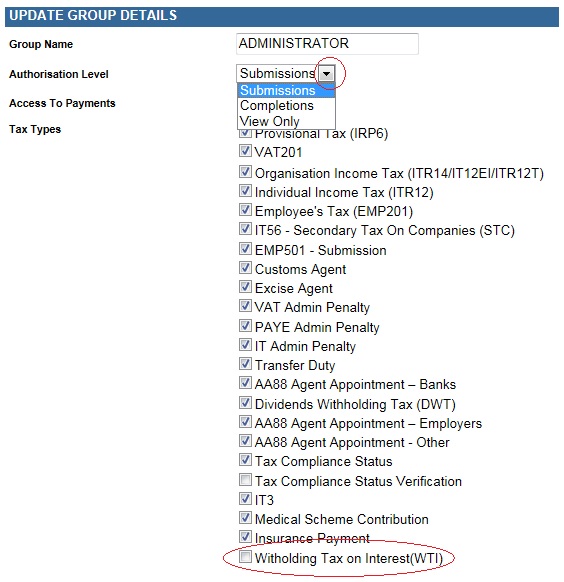
  • Before you proceed with registering, please make sure that your ‘rights’ have been activated. If you are a tax representative or a tax practitioner, add the ‘Withholding Tax on Interest (WTI)’ tax type to the group details:
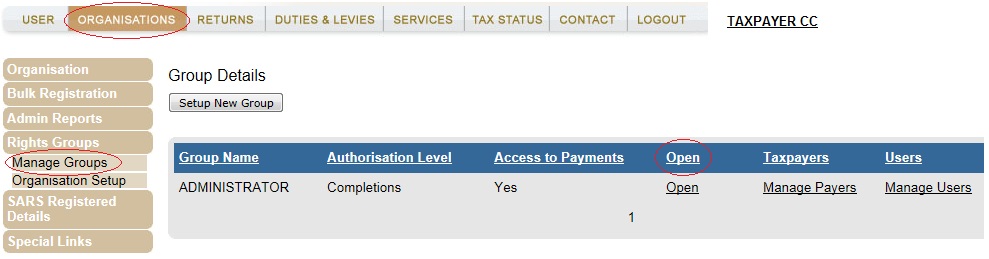
    • Select ‘Organisations’
    • Click on ‘Rights Groups’
    • Select ‘Manage Groups’
    • Click on ‘Open’
    • Select the ‘Authorisation Level’
    • Mark the check box for ‘Withholding Tax on Interest (WTI)’:

Screenshot of Organistations tab with Manage Groups circled and Open link circled

Screenshot of Update Group Details with Submissions dropdown circled as well as WTI Tax Type checkbox

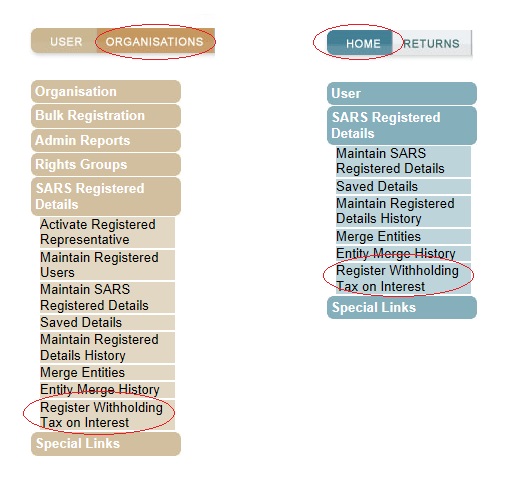
  • To register for the WTI on eFiling:
    • If you are a Tax Practitioner or  Tax Representative, select a taxpayer from the drop down list and then click on:
      • ‘Organisations’
      • ‘SARS Registered Details’
      • ‘Register Withholding Tax on Interest’
    • If you are an Individual click on:
      • ‘Home’
      • ‘SARS Registered Details’
      • ‘Register Withholding Tax on Interest’

Screenshot of Organisations circled and Register Withholding Tax on Interest cirlcled. Also, Home circled with Register Withholding Tax on Interest circled.

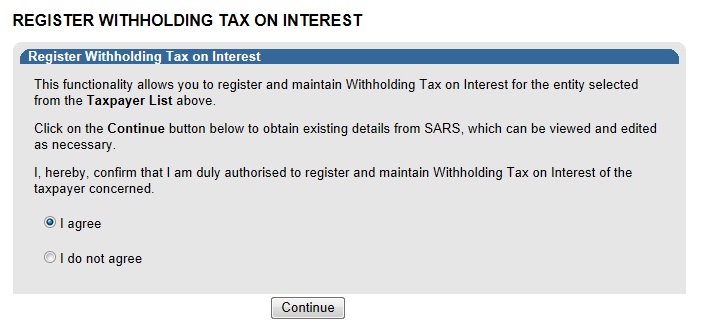
  • Read the disclaimer on the screen below:
    • Select ‘I Agree’
    • Click on ‘Continue’

Screenshot of Register Withholding Tax on Interest dialogue box

  • When the ‘Continue’ button is clicked the system will validate if the taxpayer is activated for Income Tax on eFiling.
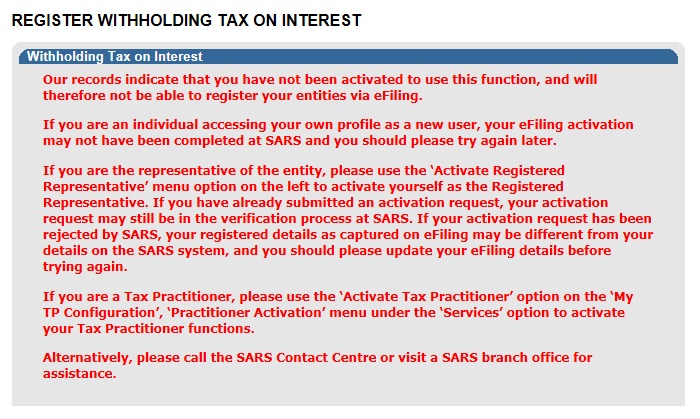
  • If not activated for Income Tax on eFiling an error message will display:
    • If you do not have an Income Tax number, please contact the SARS Contact Centre for assistance or visit your nearest SARS Branch to register for Income Tax.
    • If you do have a valid Income Tax number, please use the Tax Types option to activate for Income Tax on eFiling. 
  • If you are not an Active Registered Representative or an Active Tax Practitioner, an error message will display:
    • To activate as a representative, please select the following options:
      • ‘Organisations’
      • ‘SARS Registered Details’
      • ‘Activate Registered Representative’
    • To activate as a tax practitioner, please select the following options to activate:
      • ‘Services’
      • ‘My TP Configuration’
      • ‘Practitioner Activation’

Screenshot of Dialogue box that indicates the user has not been activated for WTI

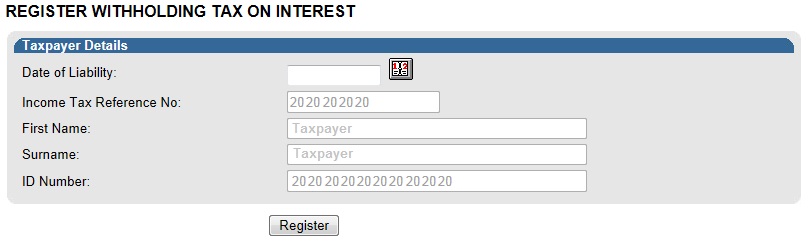
  • If the tax number is successfully activated for Income Tax on eFiling, the following screen will display:
    • The ‘Taxpayer Details’ will be pre-populated as per the taxpayer’s eFiling profile.
    • Click on the calendar icon and select the date from which you are liable for WTI. This date cannot be before 1 March 2015.
    • Click on ‘Register’.

Screenshot of Taxpayer Details part of WTI

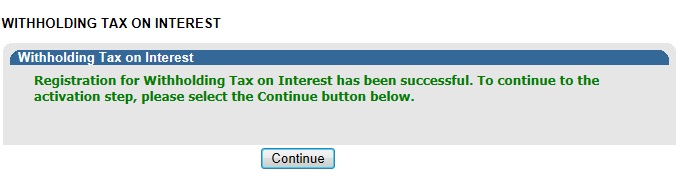
  • A pop up screen will display to confirm that the WTI registration was successful. Click on ‘Continue’. The ‘Activation for Withholding Tax on Interest’ screen will display next.

Screenshot of the Dialogue that confirms the WTI registration

Step 2: Activate WTI

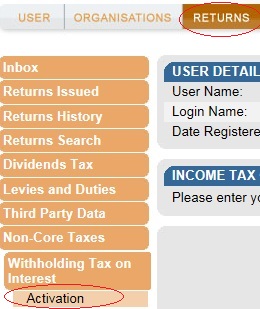
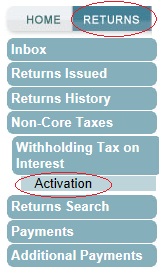
  • Click on ‘Returns’
    • Then on ‘Activation’:

Screenshot with Returns circled as well as activation

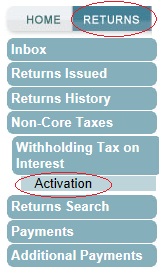
  • Select ‘Returns’ and then click the following:
    • ‘Non-Core Taxes’
    • ‘Withholding Tax on Interest’
    • ‘Activation’

Screenshot with Returns circled as well as activation

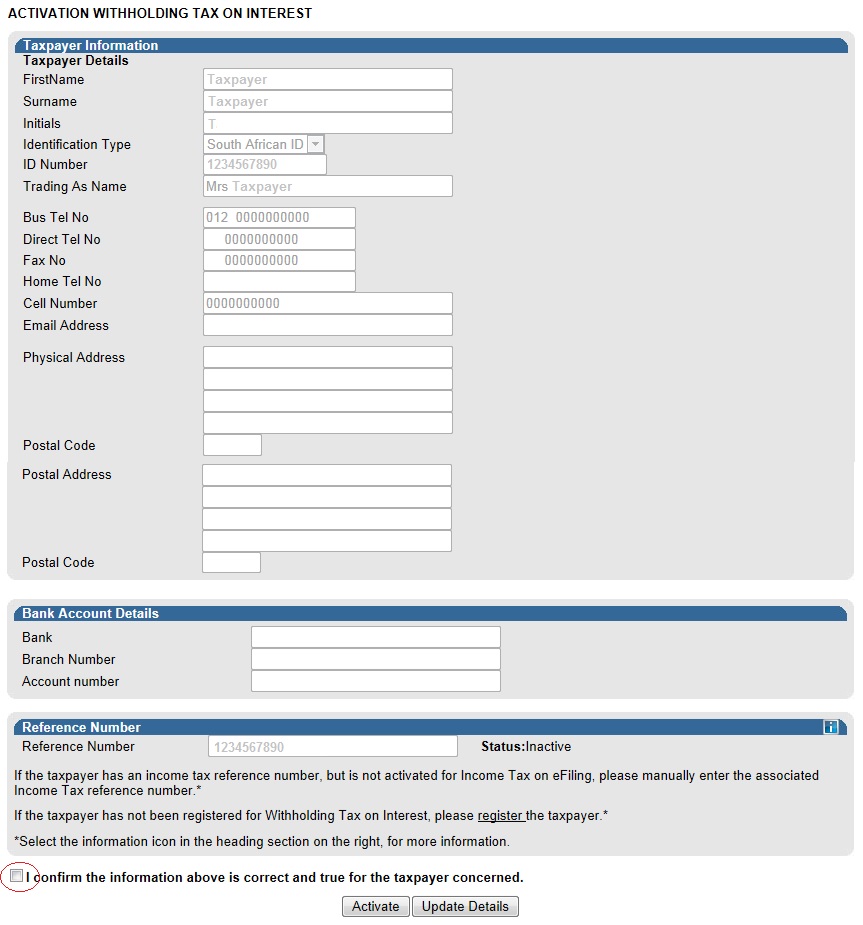
  • The activation screen will display:
    • The ‘Taxpayer Information’ will be prepopulated with the data available.
    • If the prepopulated information is incorrect, click on ‘Update Details’ to make the relevant changes.
    • If the prepopulated information is correct, select the checkbox for the disclaimer “I confirm the information above is correct and true for the taxpayer concerned”
    • Click on ‘Activate’.

Screenshot of the WTI activation screen and the confirmation checkbox circled

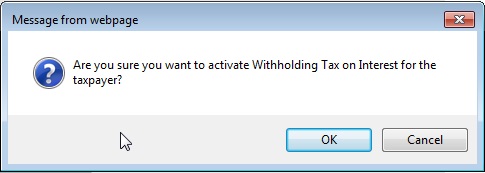
  • Click on ‘OK’ on the pop-up message to confirm you want to activate the tax number for Withholding Tax on Interest:

Screenshot of a popup box 'Are you sure you want to activate WTI for the taxpayer?' with an OK and Cancel button

  • The activation request will be validated by the system:
    • If the WTI activation is pending approval the following message will display:“Your activation request has been sent and is currently pending approval. Please check back again to see if your activation has been successful.”

Screenshot of pending approval message

  • If your information does not match the SARS records the following message will display:“Unfortunately, we could not match the details supplied. Please check that all details are correct and try again or contact us if the problem persists”.
  • Please contact the SARS contact centre on 0800 00 7277 for assistance.
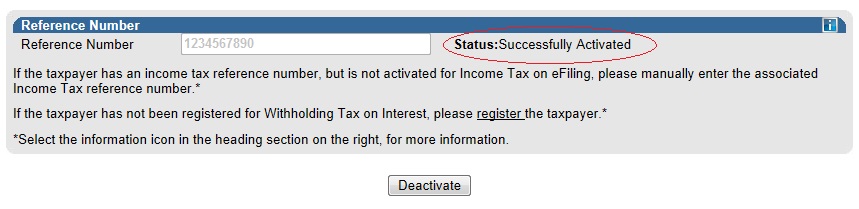
  • If the reference number is activated for Withholding Tax on Interest, the status will indicate ‘Successfully Activated’

Screenshot of Successfully Activated Status

Step 3: Deactivate WTI (if neccessary)

  • Select ‘Returns’ and then click the following:
    • ‘Non-Core Taxes’
    • ‘Withholding Tax on Interest’
    • ‘Activation

Screenshot with Returns circled as well as activation

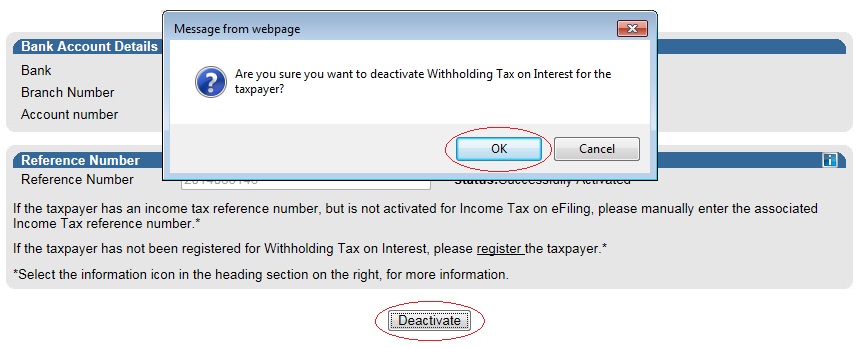
  • The activation screen will display:
    • Click on ‘Deactivate’
    • Click on ‘OK’ on the pop-up message to confirm deactivation.

Screenshot of a popup box 'Are you sure you want to deactivate WTI for the taxpayer?' With OK circled as well as the Deactivate button circled

  • The deactivation will be confirmed.

Screenshot of Message 'Deactivation for WTI has been successful.'

Step 4: Complete the Return

  • To open the Withholding Tax on Interest return page click on ‘Issued/Saved Declaration’ from the menu on the left:
    • If there are no previous requests for a return, there will be no records to display in the return grid
    • Click on the dropdown menu and select the relevant period
    • Click on ‘Request Return’

Screenshot of Saved Declaration with Issued/Saved Declaration circled, as well as the date dropdown and Request Return button

Step 4: Complete the Return

  • To open the Withholding Tax on Interest return page click on ‘Issued/Saved Declaration’ from the menu on the left:
    • If there are no previous requests for a return, there will be no records to display in the return grid
    • Click on the dropdown menu and select the relevant period
    • Click on ‘Request Return’

Screenshot of Saved Declaration with Issued/Saved Declaration circled, as well as the date dropdown and Request Return button

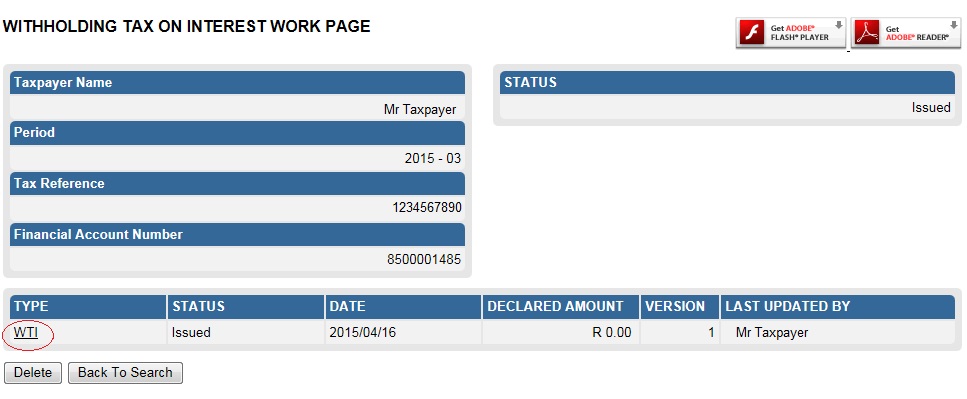
  • The Withholding Tax on Interest Work Page will display:
    • The status of the return period requested will be ‘Issued’
    • Click on the ‘WTI’ link to open the return.

Screenshot of WTI Work Page with a WTI link circled

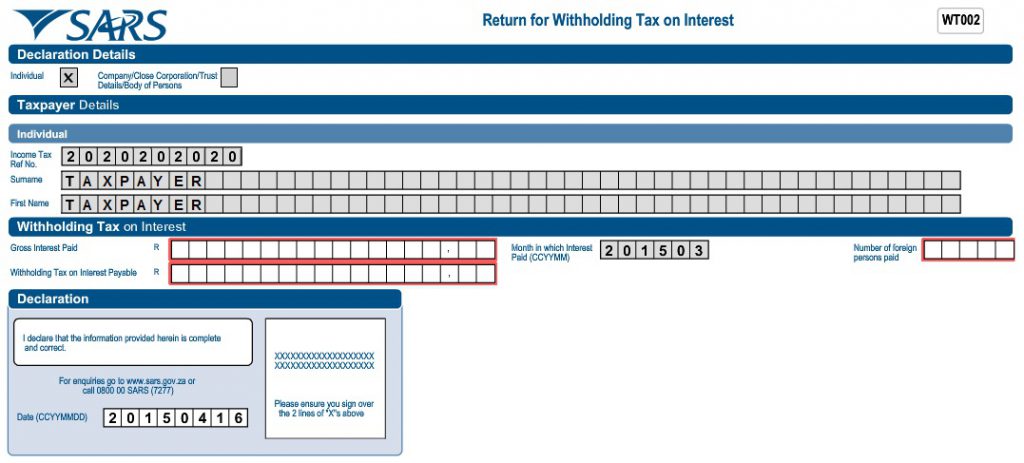
  • The Return for Withholding Tax on Interest – WT002 will display on your screen.
  • The following fields will be auto-completed on the return:
    • The taxpayer’s capacity, i.e.:
      • Individual or
      • Company/Close Corporation/Trust Details/ Body of Persons
      • Income Tax Ref No
    • If the taxpayer is an ‘Individual’:
      • Surname
      • First Name
    • If the taxpayer is a ‘Company/Close Corporation/Trust Details/ Body of Persons’:
      • Registered Name
      • Trading or Other Name
  • Complete the Withholding Tax on Interest section of the return:
    • Gross Interest Paid
    • Withholding Tax on Interest Payable – this amount must be 15% of the gross interest paid to the foreign person
    • Number of foreign persons paid
    • Month in which interest paid – the return period selected will be prepopulated in this field.

Screenshot of WT002 form

  • Click on ‘File’ to submit the return to SARS. Should you wish to save return and file it at a later stage click on ‘Save Online’:

Screenshot of Back, Save Online, File and Print buttons with File button circled

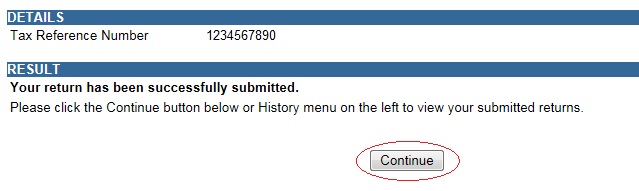
  • A message will display to confirm the successful submission of your return:
    • Click on ‘Continue’.

Screenshot of return successfully submitted with Continue button circled

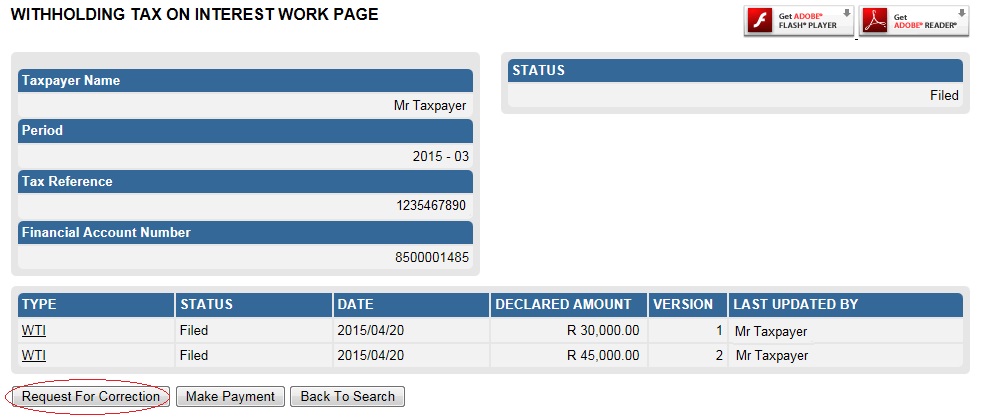
You will be redirected to the Withholding Tax on Interest Work Page:

  • Select ‘Request for Correction’ if you wish to amend the return
  • Select ‘Make Payment’ to pay the return amount.

Screenshot of WTI work Page with Request for Correction button circled

Step 5: Pay WTI

[better-ads type=”banner” banner=”1024″ campaign=”none” count=”2″ columns=”1″ orderby=”rand” order=”ASC” align=”center” show-caption=”1″ lazy-load=””][/better-ads]

  • Payments for WTI can only be made via eFiling. Payments can’t be made at a SARS Branch or at a Bank.
  • Please ensure that your banking details are set up correctly on eFiling before you make a payment.
  • To access unpaid WTI payments select the following from the menu on the left:
    • ‘Non-Core Taxes’
    • ‘Withholding Tax on Interest’
    • ‘Declaration History’
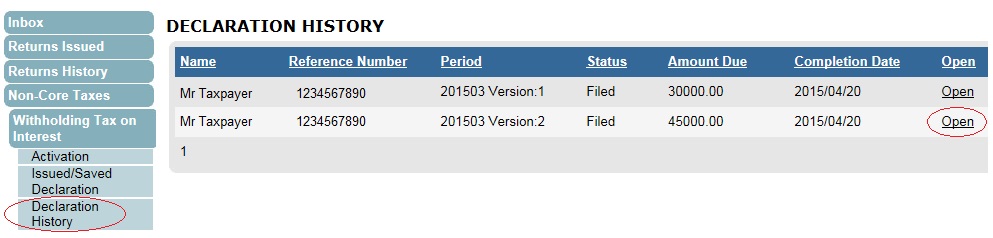
    • Identify the required return and click on ‘Open’. The ‘Withholding Tax on Interest Work Page’ will display.

Screenshot of Declaration History with Declaration History menu option circled

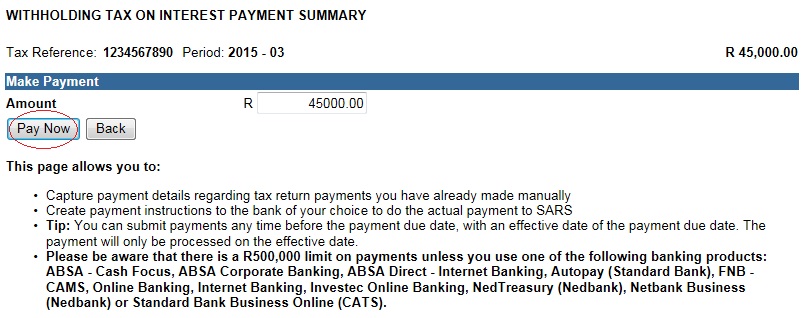
On the Payment Summary screen:

  • The ‘Amount’ field will be prepopulated with the outstanding amount due for the period. This amount can be edited.
  • Click on ‘Pay Now’.

Screenshot of WTI Payment Summary with Pay Now button circled

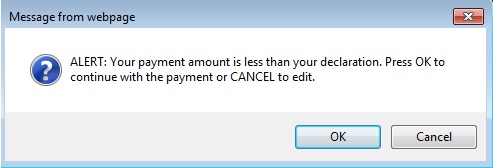
  • If the payment amount is less than the amount declared on the return, a warning message will display.  Click on ‘OK’ if you wish to continue.

Screenshot of Popup with Message 'ALERT: Your payment amount is less than your declartion. Press OK to continue with the payment or CANCEL to edit.' and Ok and Cancel buttons

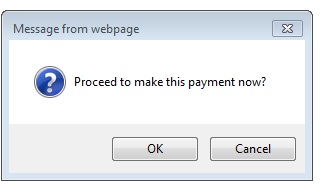
  •  Click ‘OK’ on the pop up screen to proceed with the payment. (The ‘Payment Details’ screen will display).

Screenshot of popup message 'Proceed to make this payment now?' with OK and Cancel buttons

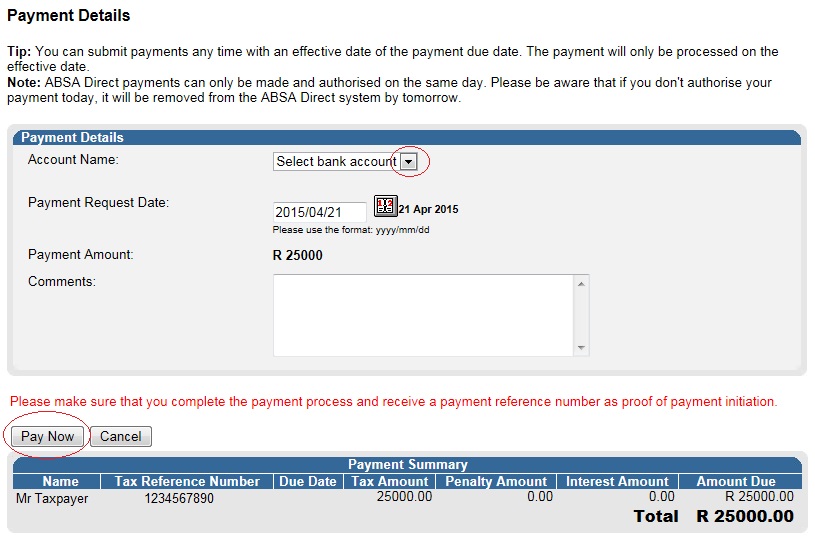
  • On the Payment Details screen:
    • Select the bank account from the drop down list.
    • Ensure that the payment request date is correct.
    • Click on ‘Pay Now’ (The ‘Confirm Payment Initiation’ screen will display).

Screenshot of Payment Details screen with Select bank account dropdown circled as well as Pay Now button also circled

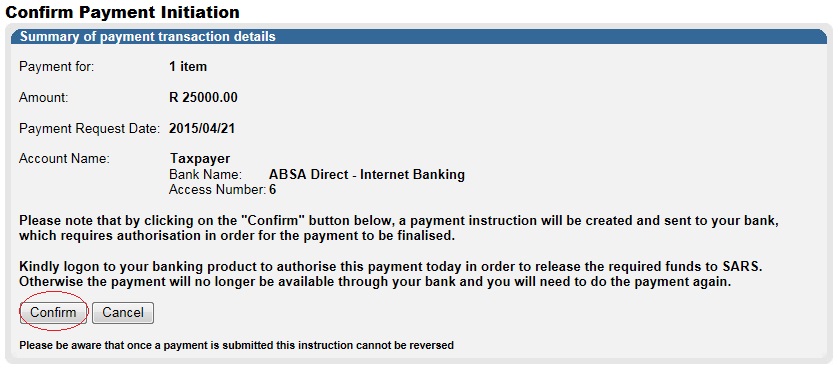
  • On the Confirm Payment Initiation screen click on ‘Confirm’:

Screenshot of Confirm Payment Initiation screen with Confrim button circled

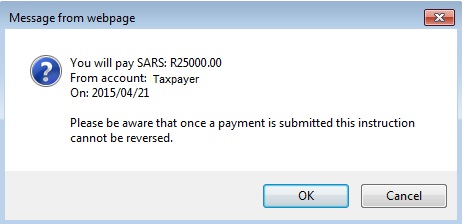
  • A pop up message will display for you to confirm the payment amount, account and date of payment. Click on ‘OK’ to proceed.

Screenshot of popup box with message 'You will pay SARS: R25000.00 from account: Tapayer on: 2015/04/21. Please be aware that once a payment is submitted this instruction cannot be reversed.' with OK and Cancel button

[better-ads type=”banner” banner=”1025″ campaign=”none” count=”2″ columns=”1″ orderby=”rand” order=”ASC” align=”center” show-caption=”1″ lazy-load=””][/better-ads]

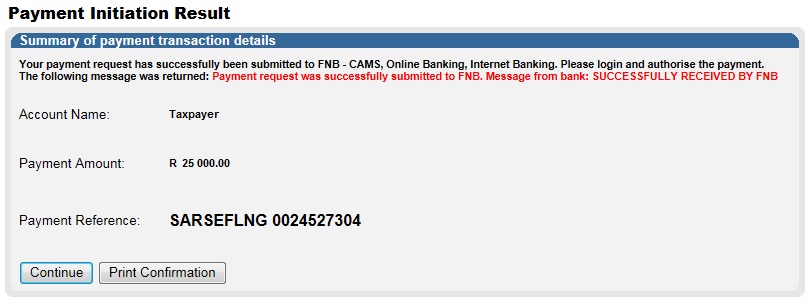
  • The payment initiation result will display:

Screenshot of Payment Details screen with Select bank account dropdown circled as well as Pay Now button also circled

  • On the Confirm Payment Initiation screen click on ‘Confirm’:

Screenshot of Confirm Payment Initiation screen with Confrim button circled

  • A pop up message will display for you to confirm the payment amount, account and date of payment. Click on ‘OK’ to proceed.

Screenshot of popup box with message 'You will pay SARS: R25000.00 from account: Tapayer on: 2015/04/21. Please be aware that once a payment is submitted this instruction cannot be reversed.' with OK and Cancel button

  • The payment initiation result will display:
    • Please log on to your bank account to authorize the payment.

Screenshot of Payment Inititaion Result with a Summary of payment transaction details

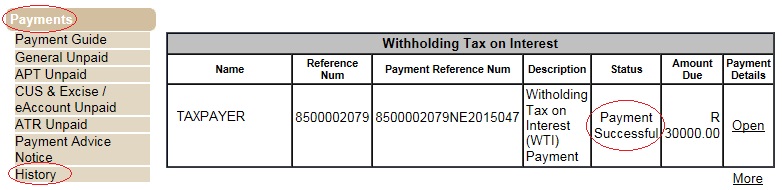
  • After the payment is authorized the payment status will change to ‘Payment Successful’:

Screenshot of Payments History Showing Successful Payment

For more information Visit the Official webpage Click here

October 19, 2021 0 comments
0 FacebookTwitterPinterestEmail
South African Revenue Service
Uncategorized

South African Revenue Service SARS 2021

by admin October 19, 2021
written by admin

South African Revenue Service SARS

The South African Revenue Service (SARS) is the nation’s tax collecting authority. Established in terms of the South African Revenue Service Act 34 of 1997 as an autonomous agency, we are responsible for administering the South African tax system and customs service.

Role Of South African Revenue Service SARS

  • Increased Customs and Excise compliance
  • Increased tax compliance
  • Increased ease and fairness of doing business with SARS
  • Increased Cost effectiveness and Internal Efficiencies
  • Increased public trust and credibility.

South African Revenue Service SARS eFilling

The Notice of Registration functionality on eFiling was enhanced.  The current Notice of Registration functionality for PIT and VAT has now been extended to include CIT, PAYE and Trusts. eFilers can now access their Notices of Registration for all tax types online. Follow these easy steps:

For Organizations:

  • Step 1 – Login to https://www.sarsefiling.co.za/
  • Step 2 – Go to the Organizations main menu
  • Step 3 – Click SARS Registered details on the side menu
  • Step 4 – Select Notice of Registration
  • Step 5 – Select the relevant tax type: VAT or CIT or PAYE or Trusts

For Individuals:

  • Step 1 – Login to https://www.sarsefiling.co.za/
  • Step 2 – Click on the Notice of Registration icon on the top right side of the screen
  • Step 3 – Click on Request new or view
  1. The SARS eFiling web site provides Users with access to and use of information about the eFiling service and eFilers with access to the eFiling service.
  2. The eFiling service provides the eFiler with the ability to access, conclude, deliver, receive and read electronic filing transactions.
  3. When the eFiler submits a return, as defined in the Act, in the form of an electronic filing transaction to the eFiling service, the eFiling service forwards the return to the relevant tax system and, within a reasonable time, by return electronic filing transaction, confirms to the eFiler, on their electronic filing page, whether such return has been accepted and processed by SARS.
  4. In case of a payment to SARS through the eFiling service, provided that the eFiler has complied with all the prescribed procedures for making such payment, the eFiling service will store an electronic filing transaction, containing a record of such payment on the electronic filing page of the eFiler. To enable this functionality, SARS co-operates with various banks (“SARS’ banking partners”), who on instruction from the eFiler concludes the payment. The electronic filing transaction is merely a record of such payment. The arrangement for payment to SARS is between the eFiler and the SARS’ banking partners. Although SARS’ banking partners take reasonable steps to secure payment information and use payment systems that are sufficiently secure with reference to accepted technological standards, SARS shall not be liable for any claims, losses or damages suffered by the eFiler in respect of such arrangement.


October 19, 2021 0 comments
0 FacebookTwitterPinterestEmail

Products

  • Mashuka mazuri ya kisasa Mazito Mashuka mazuri ya kisasa Mazito TZs35,000 Original price was: TZs35,000.TZs30,000Current price is: TZs30,000.
  • Mashuka mazuri ya kisasa Mashuka mazuri ya kisasa TZs30,000 Original price was: TZs30,000.TZs27,000Current price is: TZs27,000.
  • Dressing Table za kisasa Dressing Table za kisasa TZs550,000 Original price was: TZs550,000.TZs500,000Current price is: TZs500,000.
  • Jezi mpya ya Manchester United 2026 - Order now Jezi mpya ya Manchester United 2026 - Order now TZs30,000 Original price was: TZs30,000.TZs27,000Current price is: TZs27,000.
  • Presidential Executive Fancargo Sofa set with Premium details Presidential Executive Fancargo Sofa set with Premium details TZs4,000,000 Original price was: TZs4,000,000.TZs3,500,000Current price is: TZs3,500,000.

Things To Do

    • Log In/Register
    • Read Blog
    • Subscribe

Contact Info

  • Address: Dar es salaam Tanzania
  • Email Address: assengablogtz@gmail.com

Business Hours

  • Monday
    8:00 AM - 9:00 PM
  • Tuesday
    8:00 AM - 9:00 PM
  • Wednessday
    8:00 AM - 9:00 PM
  • Thursday
    8:00 AM - 9:00 PM
  • Friday
    8:00 AM - 7:00 PM
  • About us
  • Privacy Policy
  • Advertise Here
  • Contact us

@2026 – All Right Reserved. Designed and Developed by assengaonline media

Facebook Twitter Youtube Instagram
assengaonline.com
  • Home

Shopping Cart

Close
No products in the cart.
Close